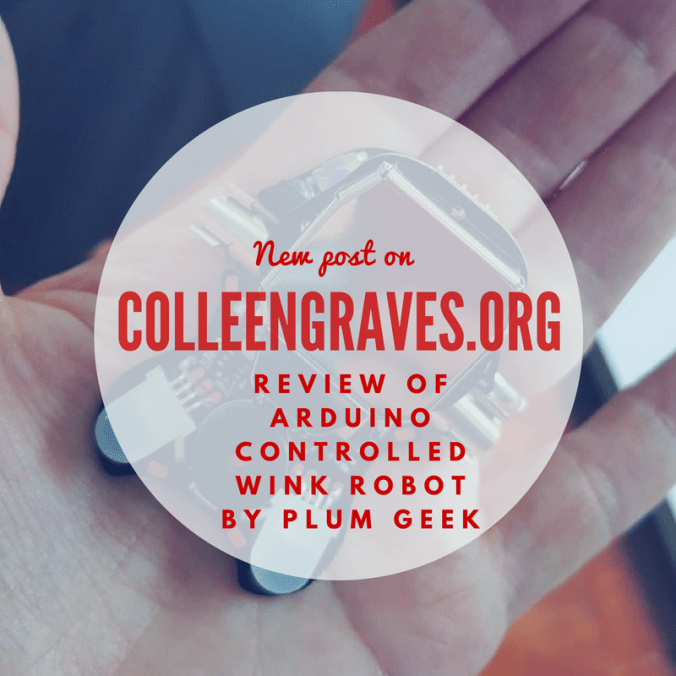
 In my last post, I discussed my laborious journey toward learning to program Arduino projects. If only I’d had a wink robot by Plum Geek! This cute bug-looking robot was actually designed to help educators teach students the Arduino programming environment (see Wink for educators).
The lessons developed by Plum Geek are a great way to teach students the basics of Arduino, help them begin programming LEDS and motors, and then start learning harder CS concepts like: conditional statements, Serial.print functions, sensors, and more!
Check out the great lessons here!
The big difference in learning Arduino this way, is that with this pre-built robot, students could focus on learning programming before learning to put together electronic components to build their own robots. Even though one of the things I love most about Arduino is the hands-on element, I’ve found that teaching kids to hook up components AND learn a programming language is a bit too much to ask at first.
Cost
69.95- Compared to other robots I’ve previously reviewed, I think this is relatively low cost.
Pairing
This is not Bluetooth pairing like other robots, but of course, you are programming in the Arduino IDE on a computer, so you need to hook up Wink to load programs and watch how changing the code changes the robot’s movements! Most standard laptops are able to download Arduino, but if you can’t download the software (ie you have a Chromebook), you won’t be able to program this robot. (For a long time there was a great site called Codebender that allowed you to program Arduino boards via the web, but it is shutting down.)
Functionality
For any Arduino project, it can be complicated to download the free Arduino software and then install the proper libraries, and FTDI driver (if you don’t have installation rights). However, Plum Geek does have some great video tutorials to walk you through this process. If you are new to Arduino, it’s important to understand the Arduino IDE (Integrated Development Environment aka open-sourced software) and the idea of libraries.
You can install “libraries” specific to boards (like Wink or the Hummingbird Robotics kit) and components (like Neopixels). It’s basically a library of “sketches” (which is a term for program) that you can easily upload to your Arduino board. For those new to Arduino, the Arduino board is a microcontroller that controls other electronic elements. When making and developing Arduino projects, it is common to hook up motors, sensors, LEDs, and control them with Arduino sketches. The great thing about Wink is that it is pre-built with an Arduino board, and LEDS, motors, and all components are already soldered together. So this little robot will still teach students how to: program LEDs, control movement with motors, incorporate sensors, and begin to work with and understand conditional statements. (Which your kids are already learning if they are working with Scratch!)
Best Age Group
You won’t like me saying this, but it really depends on the kid! I’ve taught some willing 5th graders how to control an LED utilizing the Arduino IDE, but I’ve also had high school students look at this learning environment in fear!
For schools, it really depends on your school culture. At Lamar Middle School, many of my students came to me already knowing how to use Scratch Programming, so looking at code in Arduino wasn’t too far of a stretch. However, at my current school, most of my students have not heard of Scratch! (EEEK! Which is why I’m currently catching up students by teaching all incoming freshmen to create some basic games. ) So if your students are already coding in Python and working with Raspberry Pi then your upper elementary students COULD work with the Arduino IDE. However, I see this robot more suitable for middle school to high school aged students.
(Note: Plum Geek’s webpage does say age 7 could complete the first few lessons. I’ll have to try them on my 7 year old to test that out….)
Usability
Once I figured out the correct way to hook up my robot for uploading programs, it was simple to upload code and test my bot! (But be advised that if you hook it up the wrong way, you could burn out this little guy!) When following the lessons, it’s pretty easy to play with the code, problem solve, and even start debugging when Wink doesn’t do what you want him to!
Flexibility
This robot is specifically made to help students learn Arduino. Even though it’s purpose is to teach students about coding, it can still be tied to math and physics concepts.
Longevity
As long as you don’t hook up the programming cable the wrong way or step on your robot because you think it’s a real bug, then this is a quick and sturdy little robot. See my videos below to see it in action!
Final Thoughts
If you are wanting to get a lot of students involved in Arduino programming either as a class or an afterschool robotics club, then I think this is a great starter robot for you!
I have to add a shout out to Brian Pichman of Evolve Project for telling me about these little guys! Thanks for sharing, Brian!



 Petite Texan: Pack, Pedal, Paddle