Makerspace Workshop for Region One Librarians

Last week I had the privilege of being invited down to Region One Education Service Center to lead Region One librarians in a half day makerspace workshop.

We started out with a simple chat about owning failures so we can learn from them. I also pointed out that it’s very important when beginning your makerspace journey to immerse yourself in maker education and not to get caught up in following directions. Don’t be afraid to fail and fail often in front of students. Try not to get flustered instead show them how you can learn from these experiences.

Then we got straight to work! I was hoping to give them 4 short tasks with each maker resource and move quickly so they could visit each maker station, but librarians like to move at their own pace, so we ended up moving more freely than this slideshow would suggest. (Since some of my task cards will appear in a one of my book projects with the #superlibrarianhubs, I can’t post task cards here yet.)

This slideshow requires JavaScript.

Librarians enjoyed rotating through stations and learning about Makey Makey, littleBits, paper circuits with Chibitronics tutorials, coding with Scratch, programming Sphero robots, and making simple robots with electric toothbrush motors.

View more about our learning that day by clicking on the image below to go to my Tackk documenting the day.

https://tackk.com/makerworkshop

We ended our day discussing how to start a makerspace and get buy-in from administrators.

I got some great feedback on the day:

  • “I really enjoyed the coding game and the marker bots!”
  • “Loved the banana piano. Makey Makey”
  • “My favorite station was the makeymakey station.”
  • “Getting to try out and play with the different stations.”
  • “Trying out the littleBits kits:)”
  • “I loved that we got to play and experience things for ourselves before the actual presentation.”

Thanks again for having me, Dr. Sheneman!  It was a great day of learning for us all! Can’t wait to see where your librarians go with their makerspaces!
Sphero Logistics and Circulation

A recent tweet by another maker librarian, made me realize that I should share my current (and past) organization and circulation for the awesome little robotic orb known as Sphero.

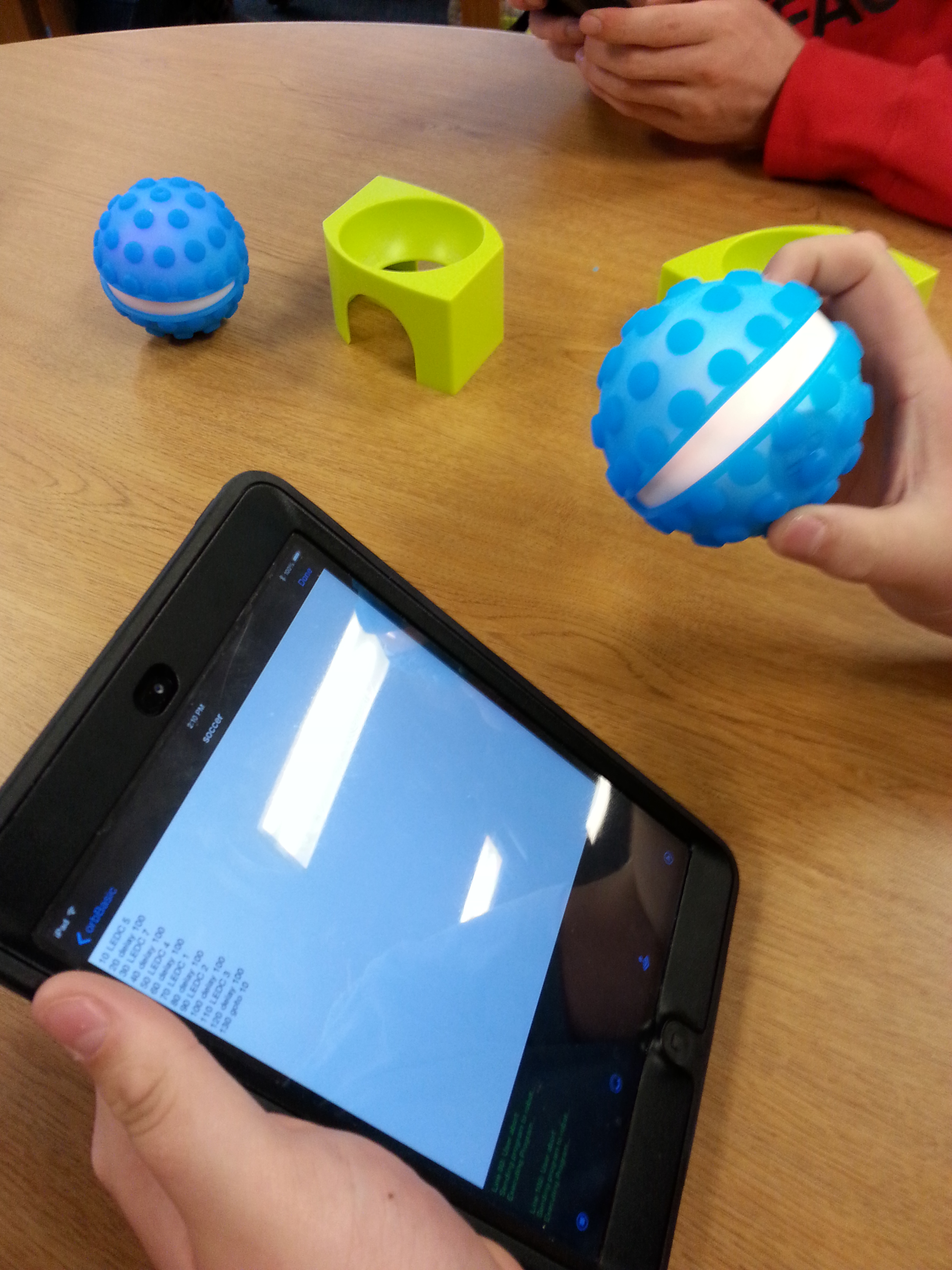
Programming Sphero w OrbBasic

At Lamar, we only had 3 Spheros, so I kept them at the circulation desk and since that district is a 1:X district, students would sync their phones or iPads themselves.  My awesome aide Sarah and I would teach them how to sync Sphero. We also explained that students would have to “forget this device” when they were done driving or it would cause problems for others who wanted to sync with Sphero.

Luckily, most of them listened, but we could always reset the Sphero by putting it back on the charger and pressing the power button.

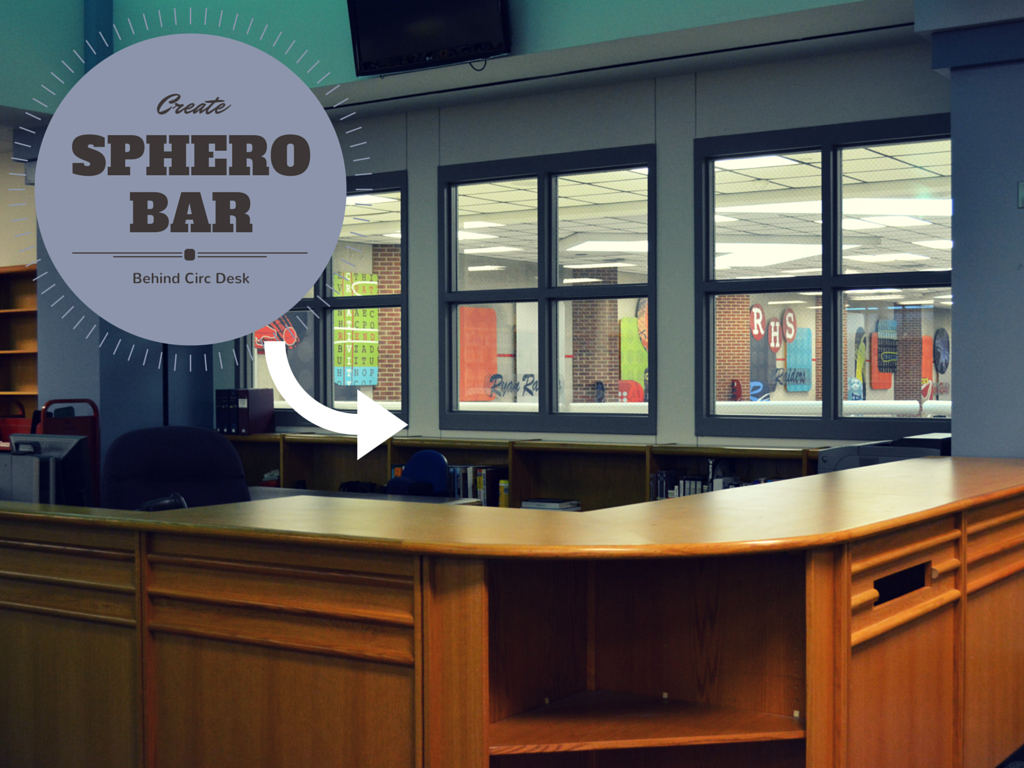
Line up Spheros w Matching iPads Behind Circ Desk

Line up Spheros w Matching iPads Behind Circ Desk? Not Logical….

At Ryan Library I now have 24 Spheros! I originally wanted to make a Sphero bar behind the circulation desk. However, my students don’t have iPads and I quickly realized that logistically building a Sphero /iPad bar would be a little more trouble than it’s worth. Especially since I can’t lock the iPads up this way AND we want to use them for other things.

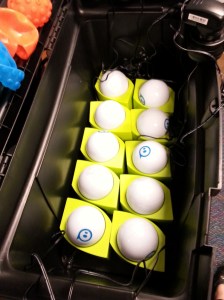
Luckily for me, classroom teacher Nathalie Faure gave me a great idea for a Sphero charging box when I posted a picture of Spheros charging all over my hotel room a few months ago. (She also notes that she names Spheros with blue tape and sharpie since her Spheros always wear a nubby cover.)

I went out to Harbor Freight and bought the cheapest 22″ toolbox, a couple of quirky chargers and set to work.  (Actually, Aaron Graves drilled some holes for me and zip tied the chargers into the toolboxes.)

So, now my Spheros are mobile and chargeable!

However, I am no longer in a 1:X district.  Actually, for Sphero, this is a good thing as syncing to one device is ideal. I was able to acquire a class set of iPads minis, and I had my amazing student aide Ray spend his first day of school helping me sync all 24 Spheros to iPads.

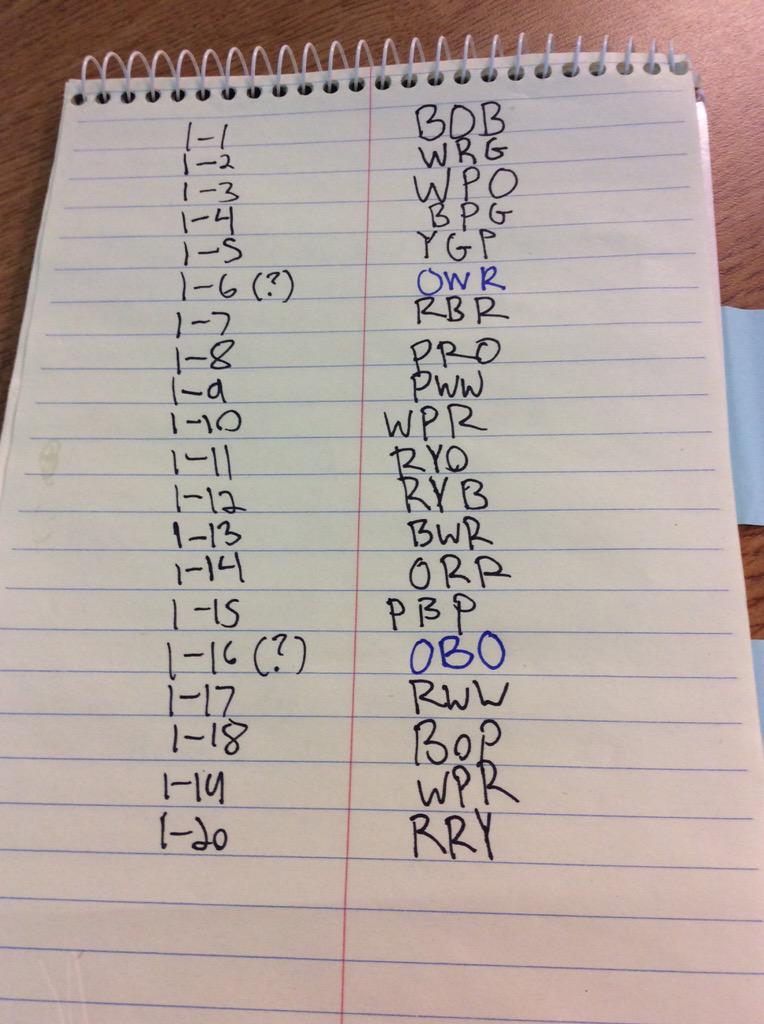
Unfortunately, we still had a little trouble playing that Soccer that first day and Ray and I quickly realized WE NEEDED TO WRITE DOWN which iPad goes with which Sphero. Plus, we needed to label each Sphero with it’s color name because once they automatically sync, it’s hard to tell which one is which.

We also ended up writing the iPad # and Sphero name on each Sphero, but I’ll warn you, this rubs off quickly, so you’ll have to redo it frequently.

Lastly, while we do own a class set of Spheros, I do not let students run wild with all 24 every lunch. Instead, I have 5 Spheros dedicated to “free play.”  We check them out like books.  Since we can’t write a barcode on them, I reused some old library card pockets and they live right at the circ desk next to our free play Spheros. Kids just come to the desk and tell Mrs. Moor they want a Sphero and she checks it out to them, moves the card out of the pocket, and places the card in our “checkout” spot. Once a student brings the Sphero and iPad back, she checks the card in and puts in back in the pocket!

Freeplay Spheros and Library Cards

Any others out there with class sets of neat tips? Some way to write on the Sphero and make it stay? A different method of circulation? Let me know and I’ll add it to this post!