Reader Request: One of my readers, Christina, asked how our teachers are using Google Classroom, so this post is dedicated to answering your question, Christina! Thanks for asking!
christina commented on A Library AND a Makerspace
I was recently referred to your blog by a co-worker and I am really loving all that you are doing. I’m wondering if you have any elementary peers who are also whipping up a little maker magic for the littles? I’m also interested in how your teachers are usinggoogle classroom. Perhaps a future post in the making? |
If you’ve been following my blog, you’ll know that I LOVE Google Apps for Education. Last year, I attempted using Google Hangouts to track major projects like our LEAP student Global picture books where we Skyped with students around their culture. My 7th graders last year did some live author hangouts with Claire Legrand and Lindsay Cummings during Mr. Wacker’s Dystopia Unit.
But one of my absolute favorite ways to use Google is for paperless classroom activities. I’m hoping to eventually get all of my teachers buy-in on using Google Docs for taking notes when researching. Last year, while Google Classroom was still very new and very shiny, we used Doctopus to make copies of Googledocs Cornell note style. I taught the students how to color code source by changing the text color. This alone made online note taking a dream, but I loved that I could also hyperlink a pathfinder I’d made in S’more. The pathfinder was designed to help direct students to our online databases and give them tips on searching the databases more effectively. Read more about the whole process here.


Last year my 8th graders also embarked on an amazing PBL based on the All Songs Considered Podcast. Their teachers and I created a landing project site for them in Google Sites and we used Sites Maestro to create individual Google Sites for all of the 8th graders. The students then blogged about music and eventually wrote, recorded, and uploaded their own podcast. You can see the whole collaboration process on this Tackk and read more about the All Songs PBL on this blog post.
At my new school, students are just now getting into utilizing Googledocs and Google Apps for Education. Because of this, my ITS Leslie and I attempted teaching the bulk of our freshmen how to use and collaborate with Google docs and Google Slides at the beginning of the school year.
As English teachers came in to plan with me this year, I originally showed them this Googledoc I’d used in the past, but I quickly updated it to the new and improved “color-coded by table” Google doc made by none other than the #superlibrarianhubs, Aaron Graves. (Follow Aaron on Twitter)
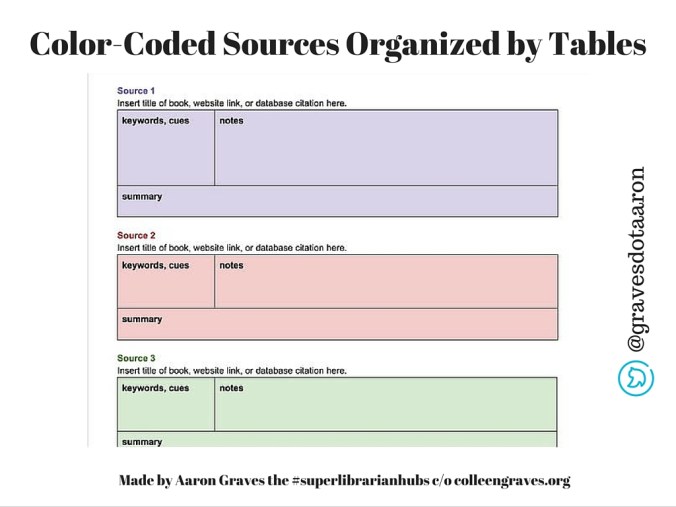
Aaron’s document actually makes much more sense to students. Plus, it is more comfortable for teachers who still cling to hand written notes since the table organizes all of the notes together with the correct source. I share the document with the teacher and the teachers “Create a Copy” for each student in Google Classroom. Google Classroom is pretty awesome because it creates a folder in the teacher’s Google Drive called “Classroom.” Teachers can organize their classes and find student work by folder, all just by creating classes in Classroom. It combines Edmodo with a full paperless classroom experience. A teacher can share a note for students to read (much like Edmodo) or create a collaborative document for to students to work on as a class or in groups. Plus, teachers can make students individual copies of assignments. When I started using Googledocs in 2007, I had to create my own folders and rely on students to share with me. If I didn’t want to deal with forgetful students or misnamed documents, I would create documents to share with groups of students. It was quite tedious and time consuming! One of the other great things about Google Classroom is that Classroom titles the document for your students. It includes their name in the title and any thing you create for students is automatically shared with you as the teacher. So you can watch their progress throughout the lesson. I like to share research documents and then look through documents a couple of days into research and “real time”comment on how students are working during class. When they are first exposed to this, they freak out! It really helps hold students accountable. They cannot lose a GoogleDoc!
Another awesome thing is that since I shared this and I have the “Easy Bib” add-on, when students go to add-ons inside Google docs, it will automatically come up as an option. They’ll have to add it to allow it to function, but once they do that they can easily create citations right inside of their Googledocs! If students are using web resources, they can even go to the native tool “Research” to create citations for web sources all within the Googledoc!
A few librarians on Twitter asked for a copy, so here is a version you can copy for yourself! And I’m working an “Annotated Bibliography” version for an AP course you can make a copy of too!
You can also read about our DIY Chromebook Storage here and a few more tips on Google Hangouts in this Social Media Advocacy post.
How about you? How do you and your teachers use Google Classroom?
 Petite Texan: Pack, Pedal, Paddle