Makey Makey Lessons
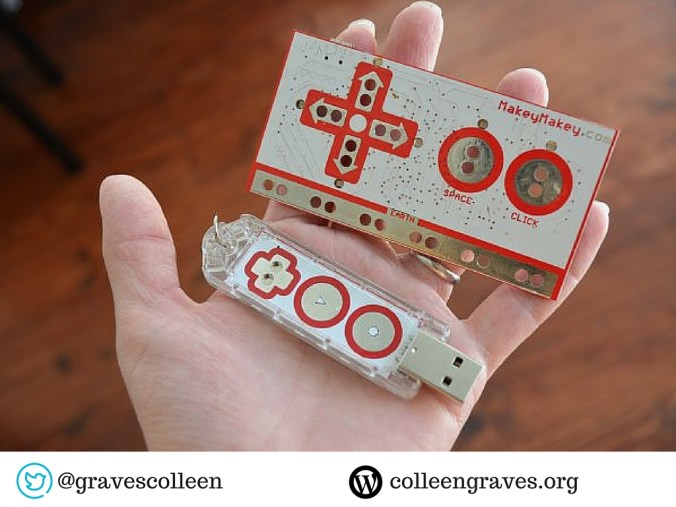
If you read my blog then you know I love all things Makey Makey! While I was writing Makey Makey lesson plans last summer, I was super stoked to hear the announcement of their Kickstarter campaign for the super portable Makey Makey Go. Mine came just in time for Christmas, but unfortunately, I had to hold off on tinkering with it right away because Aaron and I have been busy working on projects for our upcoming book deadline. We’ve finally had some time to work out a few projects with the Go and I am in LOVE with it!
Makey Makey Go Experiments
The first thing we did with the Go during our family maker time was use it with our vintage Operation game. Who needs D batteries when you have a Makey Makey Go? My children had fun picking a sound for the simple Scratch program that would alert the computer every time a player performed a “bad” operation.
I’m not going to lie though, I didn’t understand Makey Makey Go at first. The first thing I tried to was trigger a selfie while eating a donut. That didn’t work for me though because I was using it wrong! I’d lost the instructions, so I did a little research and found this review by Geekdad and that’s when I realized there were a couple of very important settings on this super simple maker tool! Check out the super clear instructions available online here. The Go always has two settings: If the end is blue, it is programmed to mouse left click. You can tap the gear wear to set the Go to space bar and the end will turn red so you are aware of the setting. Plus, you can easily remap your Go space key to any key by going to http://makeymakey.com/remap/ . (However the left click option always stays left click!)
How Does Go Work?
So how does it work? The Makey Makey Go senses the object’s electrical capacity and when you touch the object you add electrons to it which tells the Makey Makey to GO! So it only works with conductive objects much like the original Makey Makey. However, it functions in a completely different way! With the original Makey Makey you (or a banana) complete a circuit to activate keys on your computer. So when I attached the donut while I was holding it, I wasn’t changing it’s electrical capacity BECAUSE I WAS ALREADY HOLDING THE DONUT. Plus, eating the donut wasn’t going to add any electrons…. doh!
The Go is a pretty amazing little invention. After just a few short weeks of tinkering, I have a whole new understanding of capacitive sensing.
But let me tell you about something else I really love that came with this kickstarter…..
Makey Makey Inventor Booster Kit
Oh, Makey Makey Inventor Booster Kit, where have you been all my life? This inexpensive kit makes inventing with Makey Makey a breeze!
The Booster Kit comes with a piece of conductive fabric, a super long alligator clip, a super long hook up wire, and my absolute two favorite items in the kit…. wait for it…..
A MAKEY MAKEY optimized PENCIL?!?!? Goodbye, bananas, hello graphite!
Plus a roll of super cool conductive tape that reminds me of fabric! You can’t tear it, so it’s much sturdier than copper tape. I found this tape right after finishing my chapter on paper circuits. While I do love copper tape, this conductive fabric tape is THE BOMB!
I envision buying one of these packs to go with every Makey Makey at my library. How cool would it be to check out Makey Makey and let patrons use this Booster Kit?
So what else have we made with it???? Well, that’s kind of a secret.
Beyond the Banana
We had a lot of fun inventing projects for the awesome Makey Makey original and Makey Makey Go in our upcoming book “The Big Book of Makerspace Projects.” We know you’ll have fun making those projects, but since I can’t share them yet, I worked on this wacky interactive at Ryan Library to include with this review.
While I was researching Makey Makey Go apps, I stumbled upon Jay’s remix of Eric’s remix of Michael Jackson’s Billie Jean. It’s getting rather late in the school year and our high school students are getting a serious dose of “Senioritis.”To combat senioritis, I worked on creating this MJ display in hopes to motivate my young makers to create their own Makey Makey invention. This interactive relies on pressure sensors that activate when a student “moonwalks” on this moonwalk tutorial foot display. As you dance, the song is played by Makey Makey and Scratch. I utilized the extra long jumper wires, long alligator clips, and conductive tape to make this happen!
Figuring out how to portray the moonwalk with footprints was the most difficult aspect of this project. Although, making pressure sensors on the floor took me awhile to brainstorm as well. How could I make sure the switches weren’t always touching and activating?
Later in the week, a teacher 3dprinted a hand for relay practice, but the hand was too small. So I thought…. hmm… how could I use this with my Michael Jackson Makey Makey interactive? I brought out the conductive tape and attached the hand to the table with a piece of rolled duct tape. Then attached the “Go” and remapped it to play the left arrow key.
The students think this is pretty funny and are baffled at how it works. It’s been fun explaining it to them and I hope they get inspired to Makey Makey their own thing!
What would you create if you had Makey Makey Go?
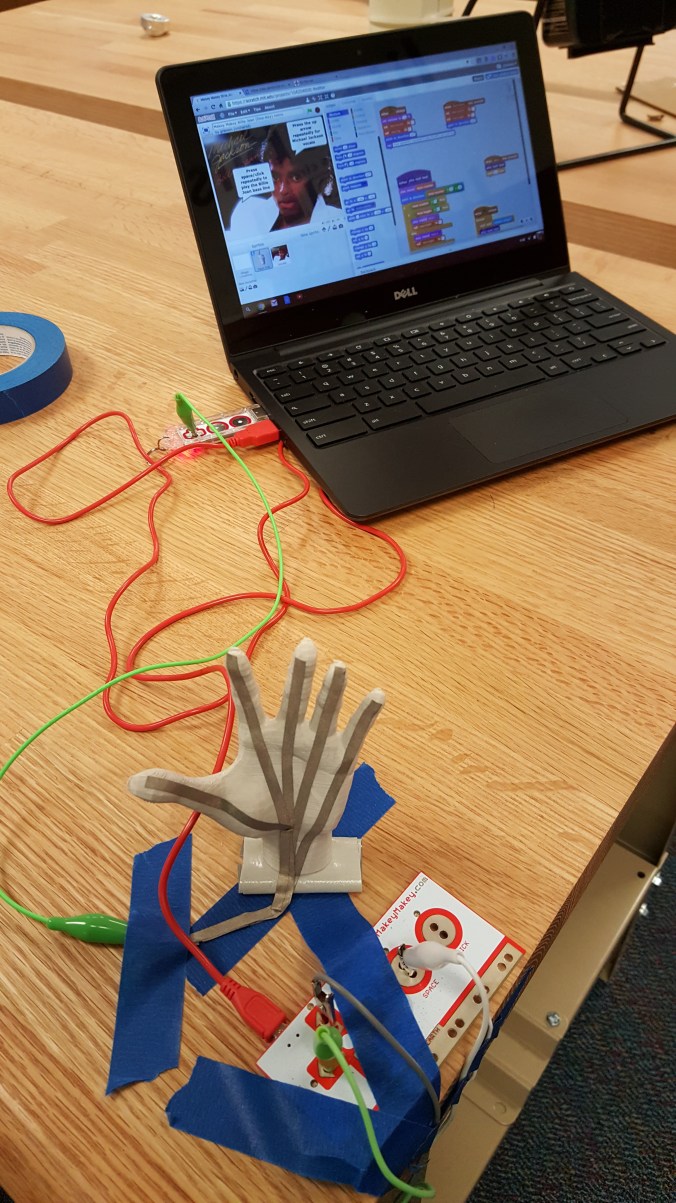
My Makey Makey Interactive hacked with Makey Makey Go!
Cool Project Ideas
More cool Makey Makey Go projects: from other makers
- Josh Burker’s Christmas Tree
- Stephen Tafoya’s Human Game Spinner
- Jay Silver’s MakeyMakey Go Studio on Scratch
- Makey Makey Go Light Sabers
Disclaimer: I did not receive any funding or free swag from Makey Makey for writing this post. I backed the Kickstarter and bought myself and my peeps 3 Gos and the Inventor Packs. I plan on buying many more for next year to get my students experimenting with building games and hopefully apps!


 Petite Texan: Pack, Pedal, Paddle