Review of New littleBits STEAM Student Set !

20160306_080533

Ayah Bdeir just announced a new kit at SXSWedu today, and I’m excited to share my thoughts on this awesome new STEAM Student Set from littleBits.

There aren’t any new Bits, but this collection has some of my favorite Science/Space kit bits from littleBits and some great accessories for building some simple inventions. Lots of cool sensors, the new updated DC motor that makes building cars easier, pulse, an inverter, fork and more. See the full set here.

My favorite thing about the kit though is the AWESOME book that comes with it. It is evident that littleBits has listened to educators and our ever-pressing need for clear instructions.

20160306_080628

Yes, the maker movement is all about tinkering and playing to learn, but sometimes, you just need basic instructions! I love the larger sized manual and the extensive section on learning how each bit works.  When I did my synth workshop (Thank you, Chad Mairn!!!)  at the beginning of the school year, I followed Chad’s footprints, sharing how each Korg littleBit worked, and it really helped the students focus on learning what kinds of sounds we could make. Plus, it helped us understand what is inside of a synthesizer and how some of our favorite music has been created.

The Manual

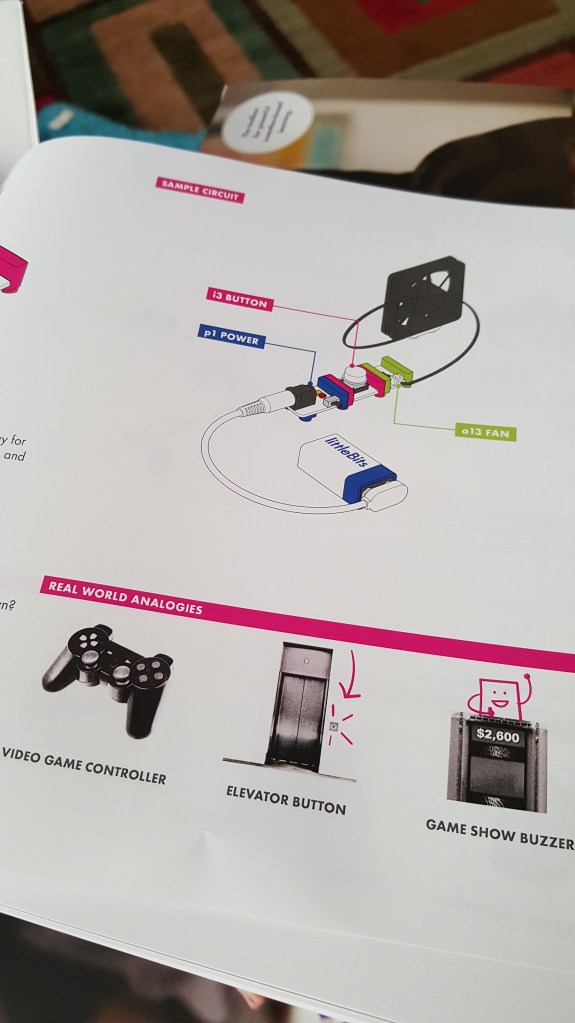
The Student Set manual has great instructions for how each bit works that will really help students slow down and learn about the functionality and usefulness of each component in the kit. I loved the theory my 7 year old had while playing with this section learning about inputs and outputs and how the “button” works.

“When I let go (of the button) the electricity is stuck, but when I press on the button, the electricity is not stuck and it goes through (to the fan).” We went on to talk about how this functions sort of like a gate, allowing electricity to move and keeping the electricity from moving.

I’m all for letting students tinker and play to learn, but I’ve seen quite a few high school students that did not grasp the “input” vs. “output” coloring system as quickly as a younger more playful student might. Instead, they gave up on the littleBits concept and tried something else in our makerspace. I’m hoping these instructions will allow students to tinker and learn with less guidance from an adult.

Real World Analogies

My other favorite thing about this manual is the “real world analogies” section for each Bit. This is another example of a connection that we, as educators, usually “hope” student make as they tinker with littleBits. However, not all students draw these connections while tinkering, so being included the manual is just bonus awesomeness for me.
20160306_081250

Temperature Sensor

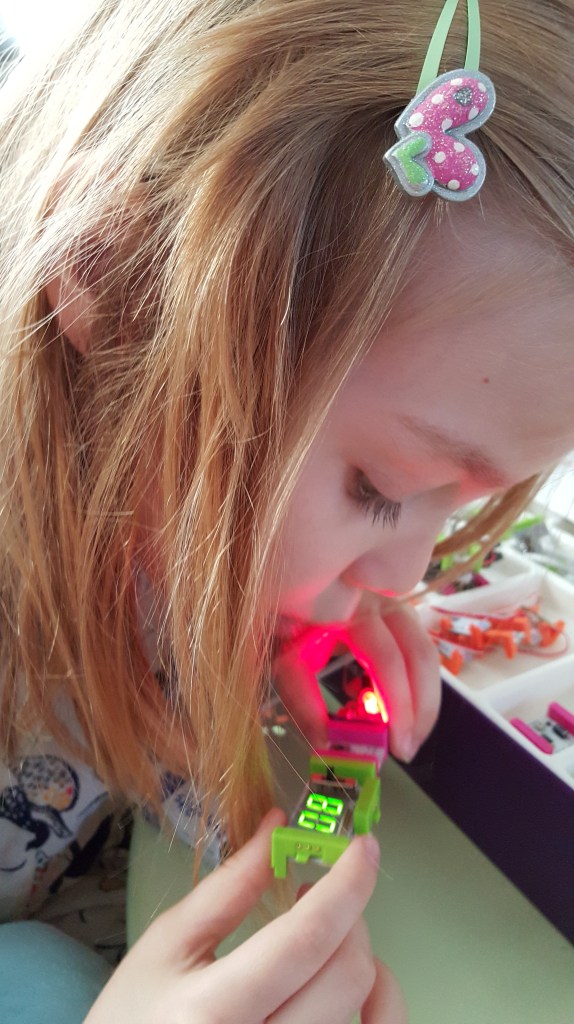
When my daughter started playing with the temperature sensor, she immediately thought it would be cool to see if she could change the temperature reading on the numberBit by blowing on the sensor. Again, it’s important to note that littleBits are not new around my household, but the instruction manual made her see littleBits in a new way and unlocked some of that magical curiosity we love to see in our younger students.
20160306_081646

Prototyping Tips

I love, love, love these prototyping tips! Some of my students often get caught up in perfection and their first idea and they don’t try enough different prototypes to really understand the invention cycle.  Thank you for these tips! Can I have a poster for my makerspace please, littleBits?

20160306_082336

Projects

I like that littleBits has put together real steps for making specific projects. Again, I am all for students creating and inventing on their own, but it always helps to follow some basic instructions first. Especially when you are learning how something works. Too many times, if a student doesn’t understand basic concepts or how each littleBit works, they cannot create an amazing invention. Following a few projects is a great way to help students learn the language of Invention Literacy (something I learned about from Jay Silver) and demystifying how things work. Personally, I’ve been learning to use Arduino the last few years by following and completing projects written by others. I’m only finally to the point now after 3 years where I feel confident enough to create Arduino projects based on my own ideas (3 wearable Arduino projects coming out in my new book!)

The”Invent a Self-Driven Car” is a super cool project, but I wish the kit included the wireless receiver and wireless transmitter so we could invent our own remote control to drive our car, but I guess that is included in the Gizmos and Gadgets kit. Other project instructions in the kit include an art machine, a throwing arm and a security device.

20160306_083524

Inventing

After learning in depth about the bits and making the first project, my 7 YO was ready to start tinkering and seeing what else she could create. She quickly pulled out the forkBit and added a few inputs and outputs. She said, “Mom, why isn’t this working?” When I pointed to the placements of inputs and started to explain, she said, “Tricked you! This only works if I press this button AND move this slide switch.” Wow. My 7 year old just explained AND gate logic? And after just 30 minutes of playing? That’s pretty awesome.


Open Challenges

I love the last section of the manual as well. There are 4 open challenges encouraging students to “Hack your Classroom”, “Invent for good”, inventing a Rube Goldberg like contraption, and lastly a “hack your habits” challenge. I’m hoping to institute the “Invent for Good” challenge at my own library and see if my own students can “invent a product to make a difference in someone else’s life.” My students came up with some pretty cool stuff during the littleBits Halloween Challenge.

Issues

My 7 year old and I still had issues mounting littleBits on the mounting board (this has always been a pet peeve of mine), but its time for me to look into the other mounting solutions offered by littleBits and now that this manual has a full description of each, hopefully I’ll find a new preferred method!

UPDATE: My set was a sample set and luckily littleBits is already on the mounting board case! The new STEAM sets will come with new MOUNTING BOARDS! Lucky you! These look pretty cool and I can’t wait to get my hands on them. I like how they somewhat resemble a PCB Breadboard.

Lastly, the box says it ideal for 3-4 students, but I would expect to use this as more of a partner activity with no more than 2 students per set.

Last but not least….

I just found out from Diana Rendina that the Teacher Guide is available for free! So go check it out and pre-order your new littleBits STEAM Student set today!

Disclaimer: This review consists of my own opinion. littleBits sent me a complimentary student set for this review, but otherwise I am receiving no compensation for this write-up.


Hands-on Learning and Boosting Creative Confidence

I can

Leander Conference

What a week! I started the week by leading “Hands-on Makerspace Learning” for teachers and librarians in LeanderISD. I enjoyed sharing ideas with them, and then watching them gain creative confidence as they tinkered with materials to make paper circuits, simple robots, and even got silly programming bananas to play their laughter with Makey Makey. The teachers enjoyed tinkering with the new “Temperature sensor” littleBit and taught me a few things about how it works!

One of my favorite a-ha moments this week was seeing the natural collaboration that occurs when educators (or students) are making stuff. When students have to figure out how things work together, they gain the confidence to teach others the basic concepts, and they gain the confidence to persevere through problems. As a teacher, my favorite aspect of this, is hearing all the thinking my students go through as they try to solve a problem. Plus, it’s amazing to be able to hear the natural questions that arrive from those think- aloud sessions.

And even better than that? The smiling and giggles and laughter when they reach success! These Leander teachers realized they could even record their laughter in the Scratch program and then “play” the Play-doh to ignite the recording of their laugh!

So much fun learning/sharing #makeymakey w #LISDCIC Ts & @leanderisd_libraries today! #makered

A photo posted by colleengraves.org (@makerteacherlibrarian) on

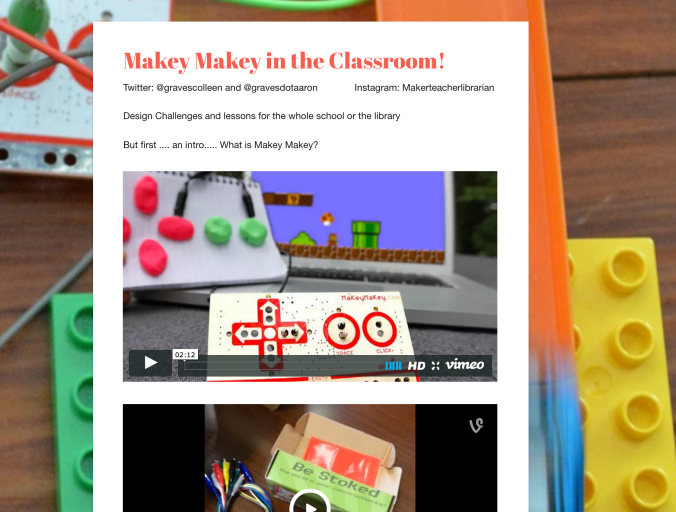
Makey Makey Session

At TCEA on Wednesday, the #superlibrarianhubs and I led an hour and half workshop on utilizing Makey Makey in the classroom. We talked to teachers about how to get started with Makey Makey, how important it is to teach invention literacy, and to never ever ever eat the gummy worms from our Makey Makey workshop! HA!

One of the best things about this session was showing educators that teaching with Makey Makey is accessible! We gave them the confidence to go #beyondthebanana. As we walked the room helping session attendees create Scratch games for their celery, gummies, and bananas, we stumbled upon some great brainstorming sessions between educators!

I really love this sketch note from our session by Vanessa Perez. (What a great way to showcase her learning, but also share her learning with others! Teachers, I will be bugging you to use sketchnotes in your classes! For those of you that are new to sketch notes, it is not an app, it is an idea- it’s simply sketching your notes in a visual and non-linguistic way. As a learner, it’s a great way to focus on what is important and help retain ideas from a session or class!)

cax4ftlumaau0pd

Awesome Sketch Note by Vanessa Perez @vperezy

All of the lessons we shared are over on the Makey Makey page, but here is a copy of our presentation with pictures and others links if you are interested. Some of my favorite lessons are the Classify and Sort Lesson (because it makes students draw geometric shapes and then program them,) the Dual Language Lesson, and utilizing Makey Makey Hot Wheels switches for Distance, Rate, and Time.

Screen Shot 2016-02-05 at 8.18.00 AM.png

Tackk for Makey Makey Session

Plus, you should take a look at the smiles and FRUIT from our Makey Makey session:

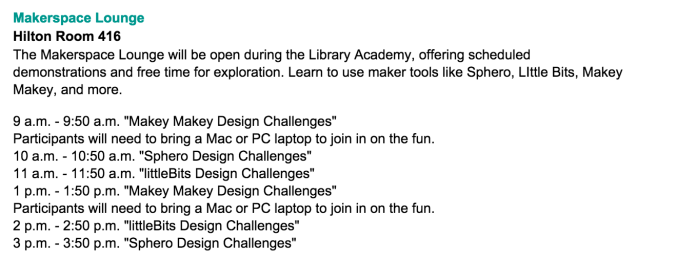
Makerspace for TCEA Library Academy

Thursday was a busy, busy day! We ran focused workshops every hour, but librarians were free to play with anything in the room. Some librarians stayed with us for a good 3 hours learning and making. Then they walked around the room and shared their new knowledge with other participants that were new to our pop-up makerspace.  Aaron, my ITS Leslie, and I were always nearby in case makers got frustrated and needed assistance. Having small, focused groups, helped librarians feel comfortable enough to sit down and explore. Sometimes, our educators just need time set aside for learning, I heard many people say things like, “Oh, I’ve seen littleBits/MakeyMakey before, but I don’t know what I would do with them.” Then they sat down, made things, and realized the power behind these cool inventions!

It was amazing to be able to offer new maker librarians a safe space to do some hands-on makerspace learning!

Screen Shot 2016-01-20 at 9.14.53 PM

One of my favorite moments was when a librarian asked, “If I put a fan on this temperature sensor, will it change the read out?”

To which I replied, “I don’t know. Let’s find out.”

Another librarian commented on how she liked the way I did that. I didn’t give a direct answer, I made her want to figure it out. I do it so often in my library makerspace that it’s second nature. If a student asks me if we have a book, I say the same thing, “I don’t know, let’s check the catalog together and find out. My goal as an educator is to empower students to find answers on their own. I’m nearby to assist when needed, but I always explain how the library system works because I want them to feel like they can walk in anytime and find what they need.

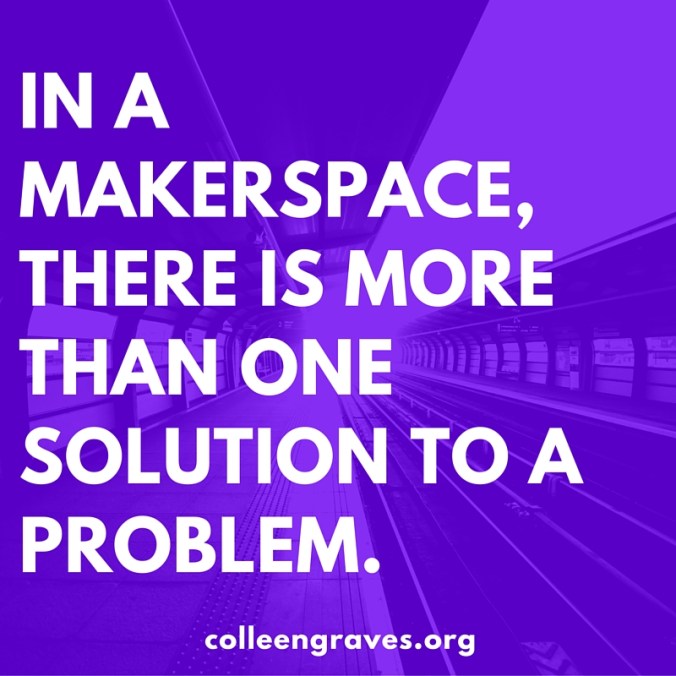
When teaching others about facilitating a makerspace, it is important to share that as maker librarians we should NOT give our makers “the” answer. We are here to build the path for them to explore and find an answer on their own. That personal road to discovery should also teach makers that there is more than one answer to a question and that there are many, many ways to solve a problem. In a makerspace, there is more than one solution to a problem.

In a makerspace, there is more than one solution to a problem.

Plus, if we don’t know, we can find out together. (Which reminds me of my last post, it is pertinent that we learn alongside our students.)  So, we set up a second set of bits with fans, and checked our temperature sensor to see the effect.

"Will the fan decrease the temperature?" #tcea16 @littlebits Let's find out! #library #makerspace

A photo posted by colleengraves.org (@makerteacherlibrarian) on

Take-aways from Leading the Learning This Week

Key phrases heard over and over this week by teachers and librarians at all sessions:

  • “I can do this!”
  • “Thank you for making this accessible.”
  • “I feel like I can try this!”
  • “I was scared of trying to incorporate a makerspace, but now I feel like I can do this.”
  • “Thank you for the time and space to explore!”
  • “I can’t wait to share this with my students!”
  • “My students are going to love this!”
  • “I can’t wait to see what my students do with this!”

So what does this mean for you, dear readers? Maker librarians, if you are wanting your teachers to collaborate with you on makerspace activities, you may need to set aside some time for your teachers to explore so they can make curriculum connections. If you are an administrator that wants this type of learning in your school, you need to give your teachers and librarians some hands on learning experiences. New to making educators? It’s okay (in fact, it is IDEAL) to learn alongside your students!