Makey Makey GIF Stations aka Personal Photo Booth

colleengravesposts (4).png

“You’re on Candid Camera!”

One of the first lessons I brainstormed for Makey Makey was the ELA Candid Camera Lesson. In the beginning, I only had a loose idea of creating a candid camera that students would activate via a switch. I thought it would be fun to take candid pictures and then tell a story later on based on the “found” images from the classroom. Don’t take this the wrong way and set up a secret camera in your classroom. Students will need to construct it and KNOW that it is there! I love the idea of letting students create GIFs with whiteboard scraps and reviewing books this way. Or even creating stop motion animation!

Reenactment Strategies

I wanted to take the lesson further though, so I thought back to my time in the ELA classroom and some great “Deepening Comprehension Strategies” from educator Jeffrey Wilhelm.  My Language Arts students THRIVED when they acted out stories, sat in the hot seat, or acted like experts. I loved how silly and fun they would get when reenacting with the “tableaux” strategy.

In this Makey Makey lesson, tableux meets technology and students create personal photo booths to make GIFs of acted out plots, vocabulary, or other narrative elements.

Incorporating the Lesson – Maker Style

Fast forward to this school year, I was stoked to hear that some of my new ELA teachers were using tableux to understand and re-emphasize the plot structure in “And Then There Were None.” So I shared my GIF station lesson idea, and Mrs. B and Mrs. F were ready to bring their classes to the library.

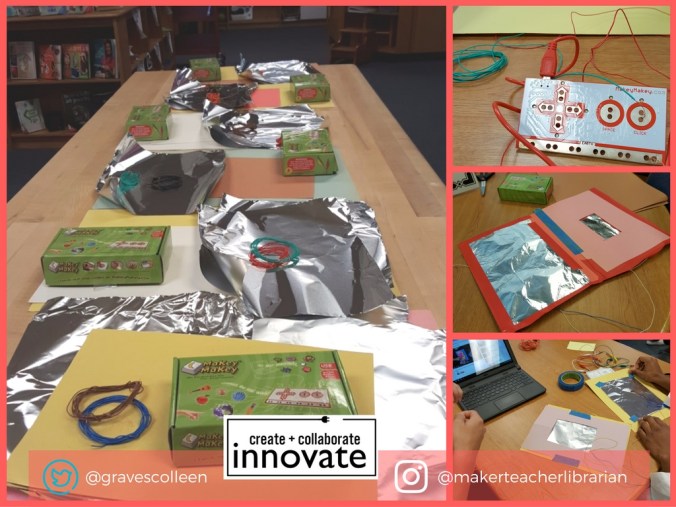
While I would love to have time to teach all of the students how to strip telephone wire for Makey Makey, I realized that we wouldn’t have enough time to do this AND create our GIF stations for tableux. (After all, what was important in the lesson? Stripping wire? Or solidifying narrative concepts?)  Instead, I enlisted my student aides to strip old telephone wires and Ethernet cables and gather supplies for our classes. My aides prepared supplies for each group:

  • Two long strips of telephone wire- with ends stripped
  • Two pieces of aluminum foil
  • One long piece of construction paper
  • One half sheet of construction paper
  • One Makey Makey Kit
  • Low adhesive tape

colleengraves.org MakeyGif prep.jpg

Hands On Learning

While you could explain how to create a switch with Makey Makey and tell students what to do….. it’s a little more fun and a little more engaging to let them figure it out and problem solve a bit. So, I had groups grab a Chromebook and navigate to my Youtube video below. I also kept a finished “GIF station” example available for them to look at if they got stuck.  As with most maker activities, some groups got it quick and others required a little more assistance.  I stayed nearby to help groups that got stuck and I prompted students to debug what was wrong as needed.

Debugging

If you try this yourself, your students will probably run into these problems:

  • Making constant connections in the DIY switch
    • Too big of a hole in the middle paper
    • Foil taped too loosely
    • Foil pieces touching on the inside of the fold
  • Camera not activating
    • It only works like a “click” so make sure to hover over the camera click!
  • Connectivity issues
    • Some students don’t realize that the copper wiring is what needs to be taped to the foil!
    • Always have students double check which pins they clipped alligator clips to!
    • Make sure one wire is connected to earth! Stay grounded!
    • Be sure they’ve plugged in the USB! (You’d be surprised how many times I’ve personally forgotten to do that!)

Tableux and GIF

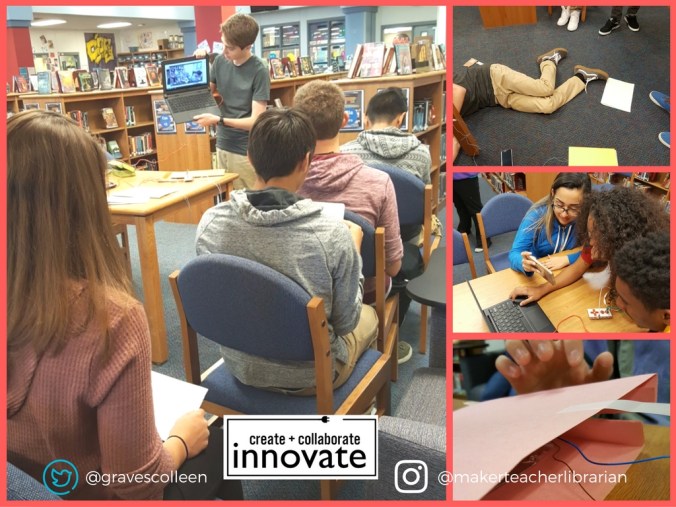
Once their GIF stations were made, students spread out around the library and reenacted their scenes and took pictures. The GIF stations made it so that all of the students could be a part of the reenactment. Some groups enlisted even more help by working together and the students thought their pictures were so funny, they took snapchats of their Chromebook scenes. Creating the GIF from the pictures on the Chromebook proved to be taxing since GIFPAL is blocked at our school, but the Makey Makey personal photo booth was a success!
colleengraves.org makey (1).jpg

Go Further

What else can you do with a personal photobooth? Mrs. Richmond decided to make a “Checkout Selfies Station” so students could show off what they checked out!

Research, Google Classroom, and Libraries

Reader Request: One of my readers, Christina, asked how our teachers are using Google Classroom, so this post is dedicated to answering your question, Christina! Thanks for asking!

christina commented on A Library AND a Makerspace

Recently I read an article discussing how libraries are converting to makerspaces. I found this wording dangerous because I …

I was recently referred to your blog by a co-worker and I am really loving all that you are doing. I’m wondering if you have any elementary peers who are also whipping up a little maker magic for the littles? I’m also interested in how your teachers are usinggoogle classroom. Perhaps a future post in the making?

If you’ve been following my blog, you’ll know that I LOVE Google Apps for Education. Last year, I attempted using Google Hangouts to track major projects like our LEAP student Global picture books where we Skyped with students around their culture.  My 7th graders last year did some live author hangouts with Claire Legrand and Lindsay Cummings during Mr. Wacker’s Dystopia Unit.

But one of my absolute favorite ways to use Google is for paperless classroom activities. I’m hoping to eventually get all of my teachers buy-in on using Google Docs for taking notes when researching. Last year, while Google Classroom was still very new and very shiny, we used Doctopus to make copies of Googledocs Cornell note style. I taught the students how to color code source by changing the text color. This alone made online note taking a dream, but I loved that I could also hyperlink a pathfinder I’d made in S’more. The pathfinder was designed to help direct students to our online databases and give them tips on searching the databases more effectively. Read more about the whole process here.

Last year my 8th graders also embarked on an amazing PBL based on the All Songs Considered Podcast. Their teachers and I created a landing project site for them in Google Sites and we used Sites Maestro to create individual Google Sites for all of the 8th graders.  The students then blogged about music and eventually wrote, recorded, and uploaded their own podcast. You can see the whole collaboration process on this Tackk and read more about the All Songs PBL on this blog post.

At my new school, students are just now getting into utilizing Googledocs and Google Apps for Education.  Because of this, my ITS Leslie and I attempted teaching the bulk of our freshmen how to use and collaborate with Google docs and Google Slides at the beginning of the school year.

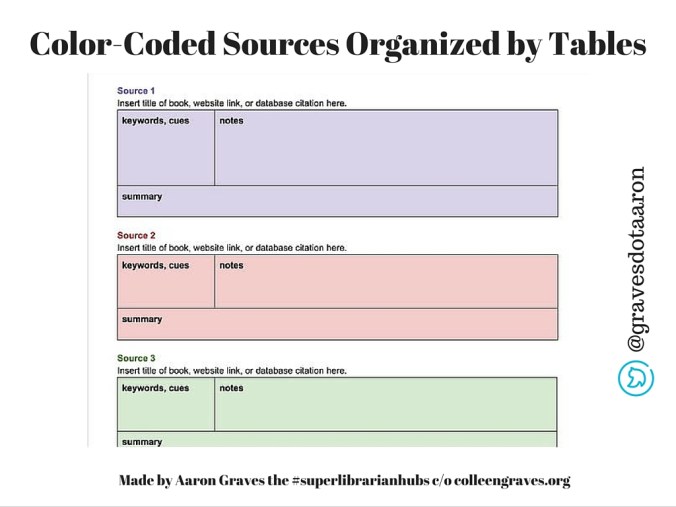
As English teachers came in to plan with me this year, I originally showed them this Googledoc I’d used in the past, but I quickly updated it to the new and improved “color-coded by table” Google doc made by none other than the #superlibrarianhubs, Aaron Graves.  (Follow Aaron on Twitter)

Color Coded Googledoc3

Aaron’s document actually makes much more sense to students. Plus, it is more comfortable for teachers who still cling to hand written notes since the table organizes all of the notes together with the correct source. I share the document with the teacher and the teachers “Create a Copy” for each student in Google Classroom. Google Classroom is pretty awesome because it creates a folder in the teacher’s Google Drive called “Classroom.” Teachers can organize their classes and find student work by folder, all just by creating classes in Classroom. It combines Edmodo with a full paperless classroom experience. A teacher can share a note for students to read (much like Edmodo) or create a collaborative document for to students to work on as a class or in groups. Plus, teachers can make students individual copies of assignments. When I started using Googledocs in 2007, I had to create my own folders and rely on students to share with me. If I didn’t want to deal with forgetful students or misnamed documents, I would create documents to share with groups of students. It was quite tedious and time consuming! One of the other great things about Google Classroom is that Classroom titles the document for your students. It includes their name in the title and any thing you create for students is automatically shared with you as the teacher. So you can watch their progress throughout the lesson. I like to share research documents and then look through documents a couple of days into research and “real time”comment on how students are working during class. When they are first exposed to this, they freak out! It really helps hold students accountable.  They cannot lose a GoogleDoc!

Another awesome thing is that since I shared this and I have the “Easy Bib” add-on, when students go to add-ons inside Google docs, it will automatically come up as an option. They’ll have to add it to allow it to function, but once they do that they can easily create citations right inside of their Googledocs! If students are using web resources, they can even go to the native tool “Research” to create citations for web sources all within the Googledoc!

A few librarians on Twitter asked for a copy, so here is a version you can copy for yourself! And I’m working an “Annotated Bibliography” version for an AP course you can make a copy of too!

You can also read about our DIY Chromebook Storage here and a few more tips on Google Hangouts in this Social Media Advocacy post.

How about you? How do you and your teachers use Google Classroom?